The Events tab
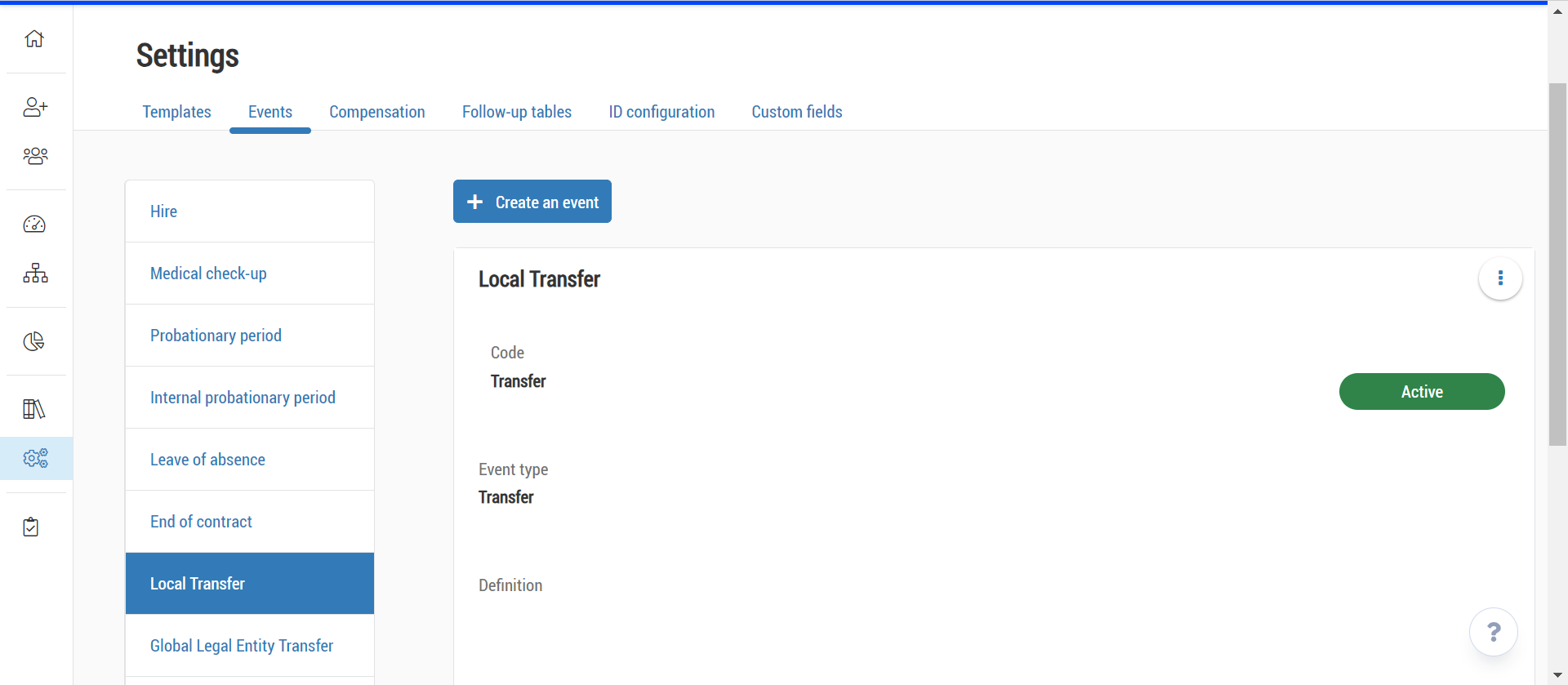
The Events tab lets you view and manage events in the Core HR module.
An event is an administrative process carried out by HR staff in relation to an employee, which may have an impact on data in the employee file.
There are several types of events:
the standard events;
Standard events are in all bases and can't be deleted.
There are six events: Hire, Medical check-up, Probationary period, Internal probationary period, Leave of absence and End of contract.
You can't create new events of this type.
the transfer type events.
You can create as many transfer type events as wished. There are two types of it:
Transfer: the employee remains attached to the same legal entity, so the transfer does not require a new contract, but we proceed in a change in an employee's current situation (e.g. position, job, organisational structure, geographic organisational structure, cost centre).
If the Contracts data set is activated in the Transfer event, the HR user will create an addendum to the employee's current contract during the event to update the contract and to register the new situation.
Legal Entity Transfer: the employee is transferred from one legal entity to another.
The current contract must be ended before to start the Legal Entity Transfer event.
A new contract with a new situation linked to it will be created during the event.
From the Events tab, you can:
create a new transfer type event by clicking on the
 Create an event button;
select an already existing event on the left side panel by clicking on it;
edit an event by modifying the information in the editable fields;
delete an event by clicking on the Delete button: this option is only available for transfer type events and custom events.
In addition to the actions, each insert lists the following for each event:
the name of the event;
the definition of the event if its exists;
for transfer type events:
the code of the event;
the type of the event: Transfer, Legal entity transfer or Custom event;
the status: Active, Draft, Inactive.
Caution: an event is configured per template, from the Templates tab. Follow the procedure in the section Events configuration, in the article Managing templates.
The right Access: event configuration allows you to access the Events tab.
Edit event rights type allow you to view and edit an event.
If you only have the View event right type activated, then you have access to the Events tab, but you cannot make any changes to the events, the  icon is not displayed.
Module | Sub-module | Right |
|---|---|---|
Administration | Administrative Management | Access: Event configuration |
Administration | Administrative Management | View event: Hire |
Administration | Administrative Management | Edit event: Hire |
Administration | Administrative Management | View event: Medical check-ups |
Administration | Administrative Management | Edit event: Medical check-ups |
Administration | Administrative Management | View event: Internal probationary periods |
Administration | Administrative Management | Edit event: Internal probationary periods |
Administration | Administrative Management | View event: Probationary periods |
Administration | Administrative Management | Edit event: Probationary periods |
Administration | Administrative Management | View event: Leave of absence |
Administration | Administrative Management | Edit event: Leave of absence |
Administration | Administrative Management | View event: End of contract |
Administration | Administrative Management | Edit event: End of contract |
Administration | Administrative Management | View event: Transfer |
Administration | Administrative Management | Edit event: Transfer |
Only transfer type and custom events can be created. To do so, from the Core HR module:
Click on the menu
 Settings on the left side panel.
From the Events tab, click on
Create an event.Fill in at least the mandatory fields Event name and Code, add a definition if needed.
Select the Event type on the dropdown list: Transfer, Legal entity transfer or Custom event.
Select a Status for your new event:
Draft: the event can't be selected by users, and it is not displayed on the events list on a template configuration;
Active: the event is finalised and can be selected by users, it is displayed on the events list on a template configuration.
Inactive: this option must be selected only if the event has been used on Core HR, but must not be included in templates configuration or available for users.
Click on Save to create your event.
Then configure your event in a template by following the procedure of the Event configuration section, in the article Managing templates.
To edit an event, from the Core HR module:
Click on the menu
Settings on the left side panel.From the Events tab, click on an event, its information appears on the right.
Update the desired fields.
For standard events, you can only modify the field Definition.
For other events, you can modify all fields.
Click on Save to save your modifications.
Only transfer type and custom events can be deleted. To do so, from the Core HR module:
Click on the menu
Settings on the left side panel.From the Event tab, click on the event to delete, and then on Delete.
If the event has already been used for employees, the pop-up Deletion not authorised display the message This event cannot be deleted because it is currently in use.